The All-SSD NAS… Improved – LincStation N2 Review
A NAS should feel almost invisible, as if part of your computer...

Video version, but the article goes further in-depth
LincPlus sent this NAS for review for my channel, "Hi-Tech Lo-Life." No money has exchanged hands and they have no editorial control over the review.
The Hardware
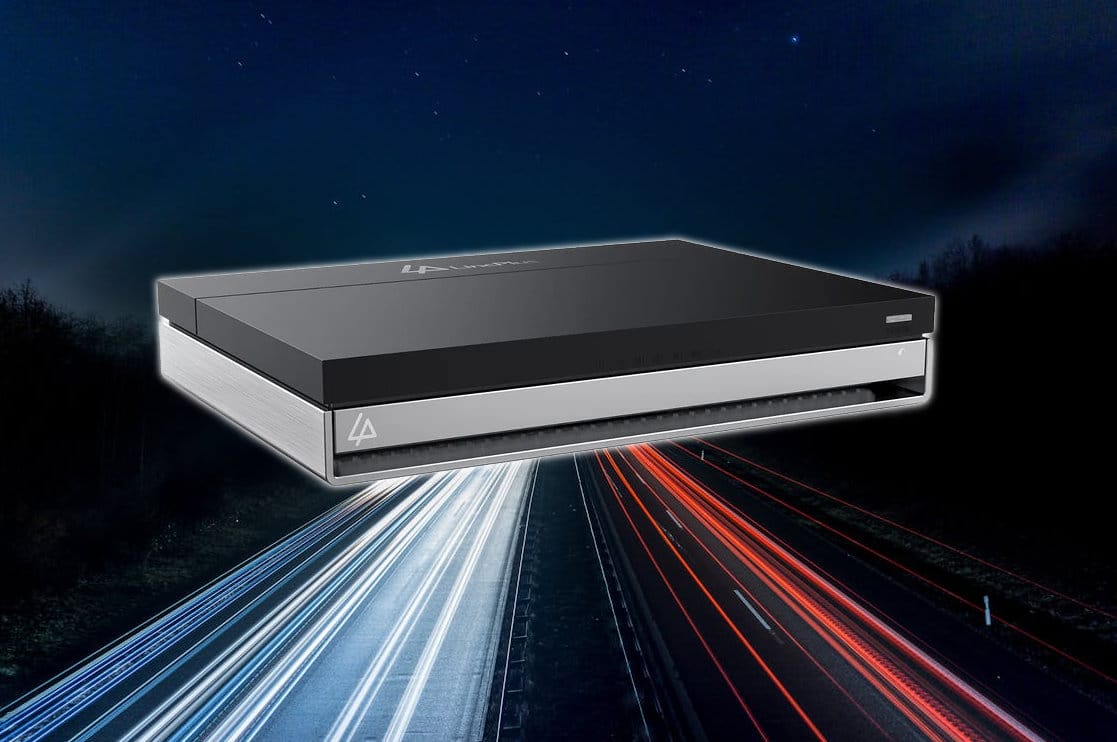
The LincStation N2 is an upgraded version of last year’s LincStation N1. Both of which are NASes specifically designed to be used with an all SSD setup. To facilitate this, the NAS features 2x 2.5in SATA bays and 4x PCIe 3.0 NVMe SSD slots. The LincStation N2 looks very similar to last year’s model, no surprises there.
The LincStation N2 features a lot of the same connectivity as the N1, but in many cases, completely upgraded. Nowhere is this more relevant than with the RJ45 Ethernet Jack. Instead of being 2.5 Gigabit like the original, the N2 has a 10 Gigabit Ethernet port. It’s the single biggest upgrade a device like this could have — the most relevant upgrade and, quite frankly, probably the main reason you'd want to upgrade from an N1 to an N2.
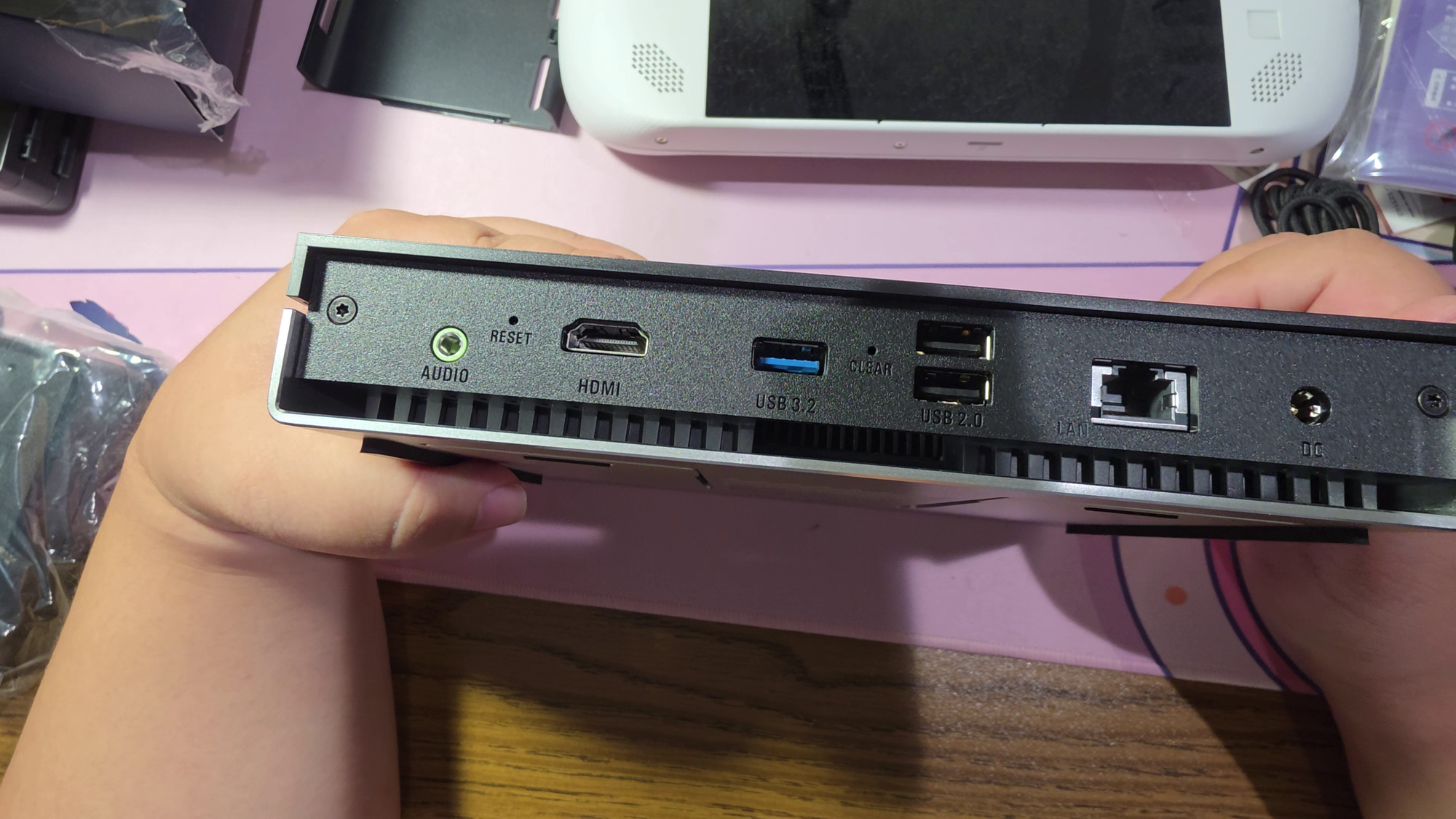
I/O Ports
- 3.5mm Audio Jack
- HDMI 2.0
- 1x USB 3.2 Gen 2
- 2x USB 2.0 Type-A
- 1x USB-C 10Gb (Front)
- 10Gb Ethernet
The NAS also features an HDMI port for video output, a USB 3.2 Gen2 port, 3.5mm audio jack, and 2x USB 2.0 all in the back… but truth be told I don’t really plug anything into the back besides the ethernet cable and power. The front features a 10Gbit USB-C port, right under the two SATA bays. And finally, hidden in one of the NVMe bays is a USB port populated with your included UNRAID media. It’s a good hiding spot for one of those shorter flash drives in case you run an OS off of a flash drive… like UNRAID.
Probably the second most relevant upgrade is that the N2 uses an Intel N100 – an Alder Lake based CPU designed for low power. Compared to the N1’s Intel Celeron N5105, it’s somewhat faster and MUCH more power efficient, a deadly combo that leads to much better performance per wattage, perfect for a NAS.
The SSDs & Installation
For testing purposes, I bought myself a whole set of NVMe SSDs. Four 2TB Silicon Power SSDs. I chose these drives primarily because they were PCIe 3.0, which works out in my favor because they were cheaper as a result, and the N2 doesn’t support PCIe 4 speeds anyways so it would’ve been a waste to get faster PCIe 4 drives anyways.
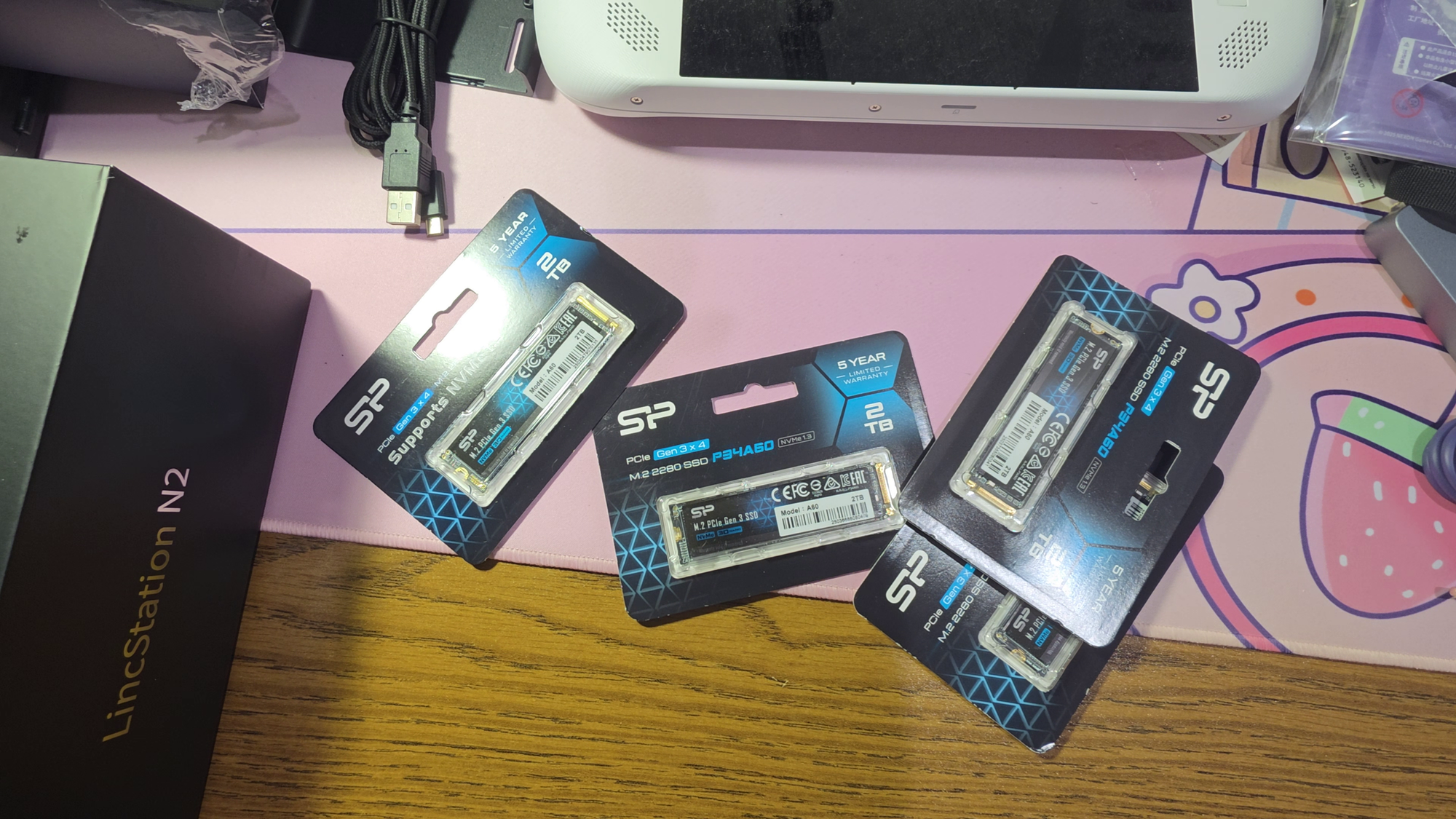
Silicon Power SP002TBP34A60M28
- 2TB NVMe
- PCIe Gen3x4
These were on sale for less than $100 per when I bought them. If you want these exact drives, feel free to check out this affiliate link. I get a kickback when you buy them this way, but you won't be charged more.
Installing the NVMe SSDs is a breeze because it’s a toolless setup — the only tools you need are your fingers. To be honest, I struggled with it at first because I didn’t realize the trick was to press the nubbins that are lined against the wall in instead of pulling them back with my thumb.
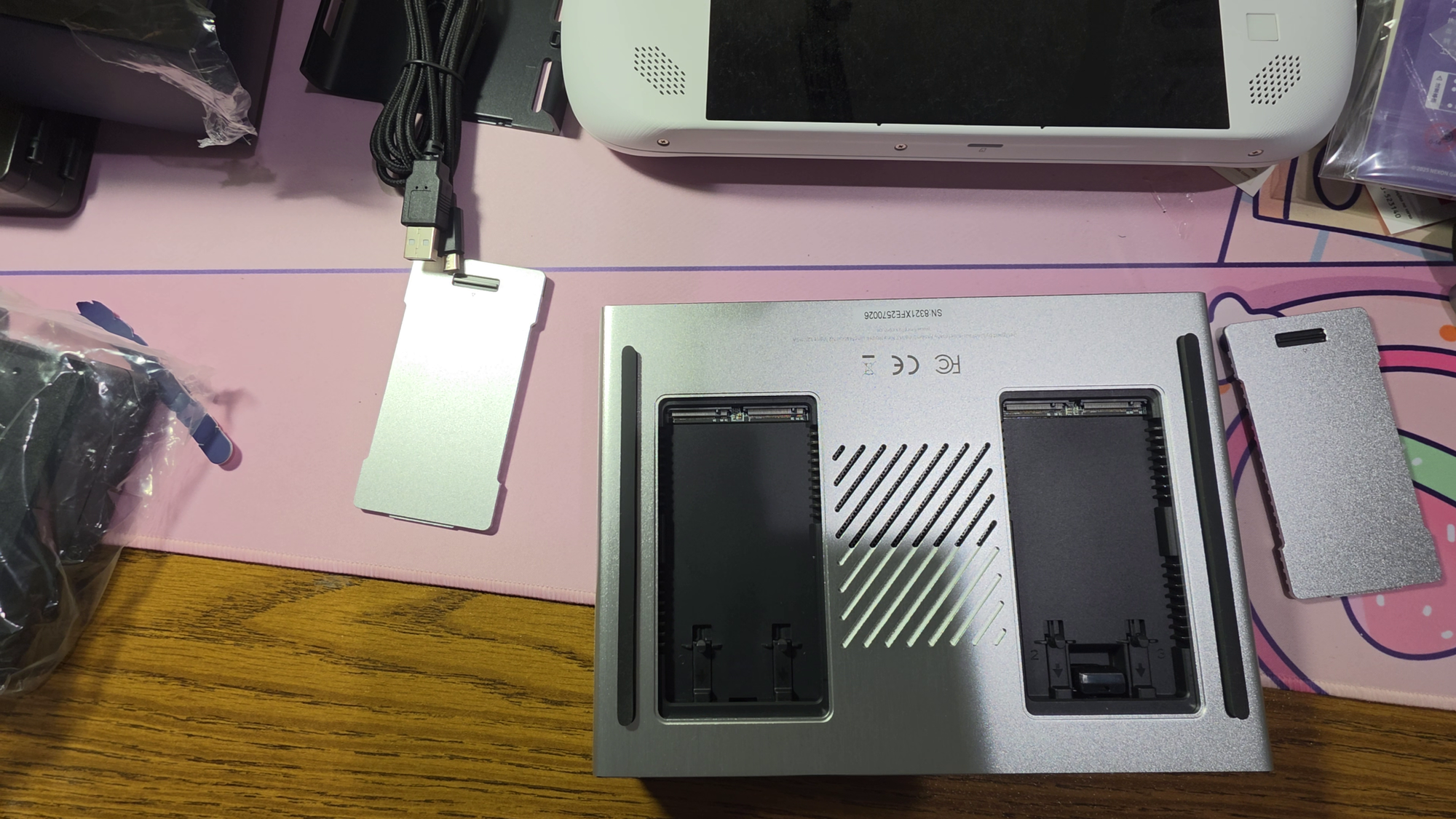
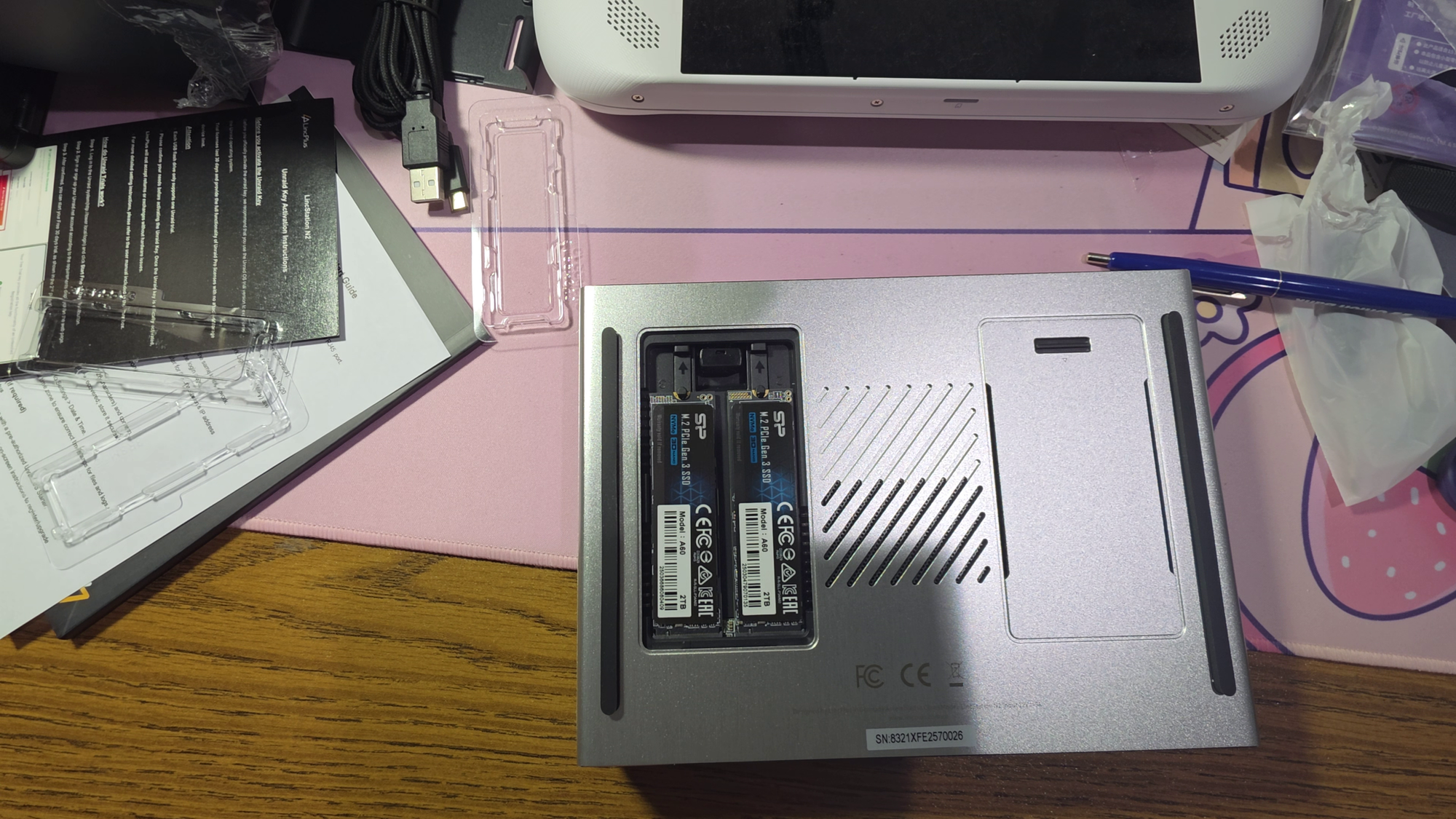
After installing the NVMe SSDs, you’re good to go. The N2 includes the aforementioned UNRAID drive as well as a license key which is good for one year of upgrades. We’ll further discuss how UNRAID’s licensing works in the software section.
The Software Part 1 – UNRAID
The Licensing
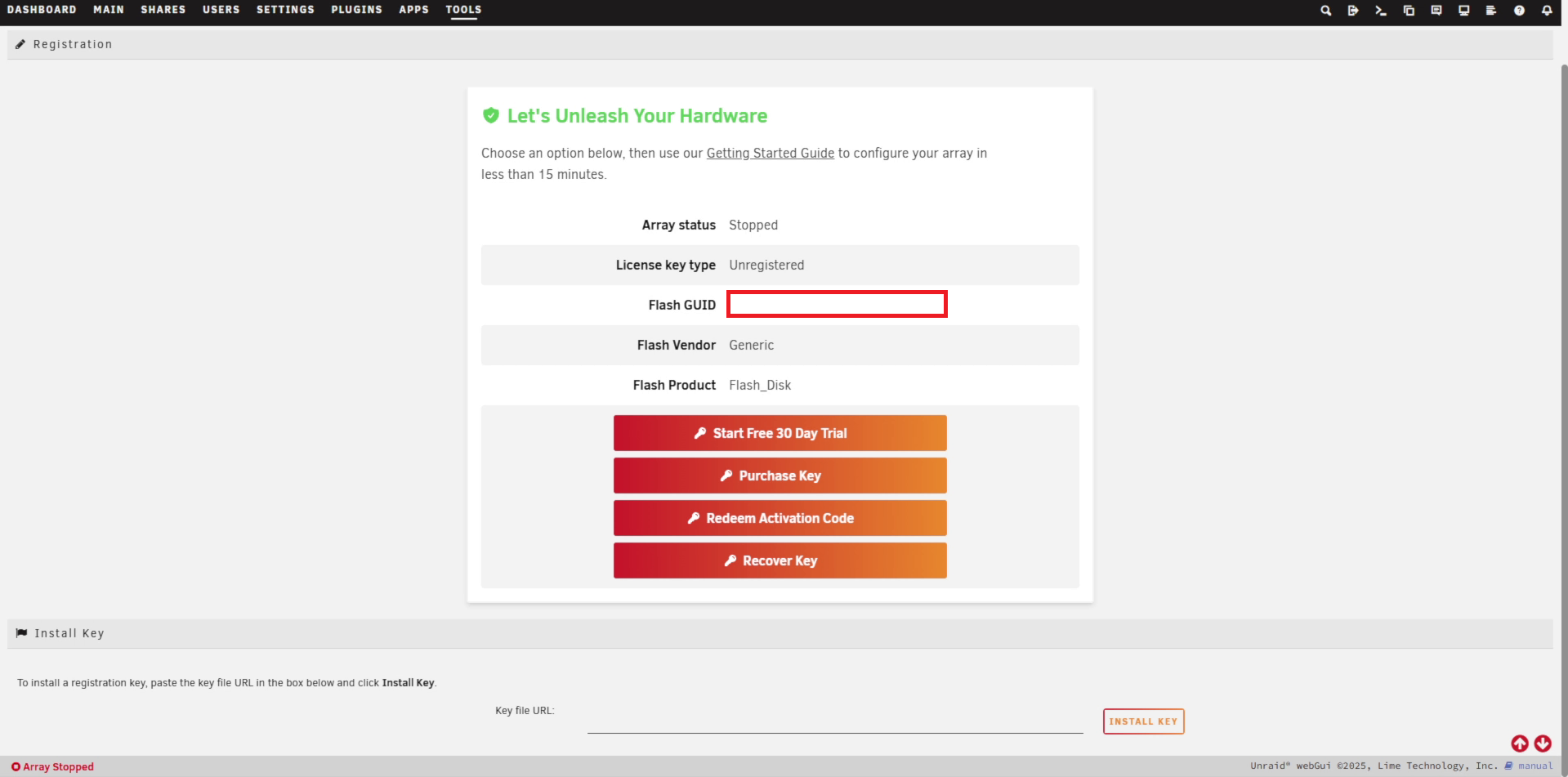
The OS that’s included with every purchase of either the N1 and N2 is of course UNRAID. It’s preinstalled on a tiny flash drive that’s in a pretty well hidden place. UNRAID requires you to run it off of a flash drive, and you typically cannot install it on standard boot media (there are ways around that but that’s beyond the scope of this review). The N1 just had UNRAID ready to go and didn’t actually send a license key with it since the boot media was already activated, whereas the N2 includes the boot media, but requires you to actually use the Starter license key to activate UNRAID.
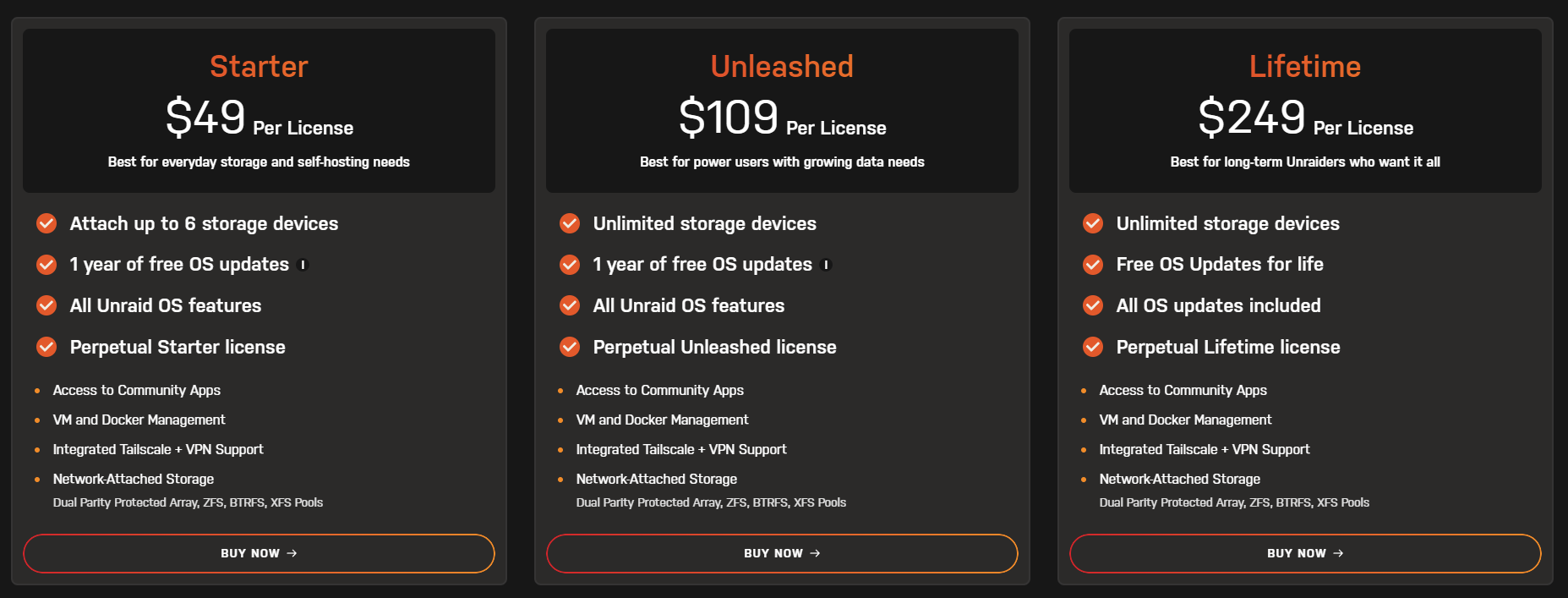
UNRAID licenses are good for a full year of updates from the moment you activate the key, and after your license ends... you don’t all of a sudden lose access to your UNRAID setup after a year. You are still free to use UNRAID after the year of upgrades ends, and you still get some security updates even after the fact… it’s just that eventually you will run out of security updates. It may not be a huge deal depending on how you port forward your setup, but it is a worthy consideration. You can also pay another fee for another year of updates.
Honestly, the Starter license is more than enough given the N2 only has 6 different slots for internal drives. The Unleashed license is the same as the Starter, but you can have more than 6 drives in a single device, and the Lifetime license is the same as the Unleashed one, but you get lifetime OS upgrades for that specific license key… and it costs more as a result.
The UI
UNRAID’s biggest strength is the ability to have a sort of JBOD style setup with its XFS filesystem. You can chuck a bunch of drives into the array and have it work, so long as the parity capacity and array capacity match, it really doesn’t matter what combination of drives you have. Of course for an all SSD NAS, this advantage doesn’t matter too much for me.
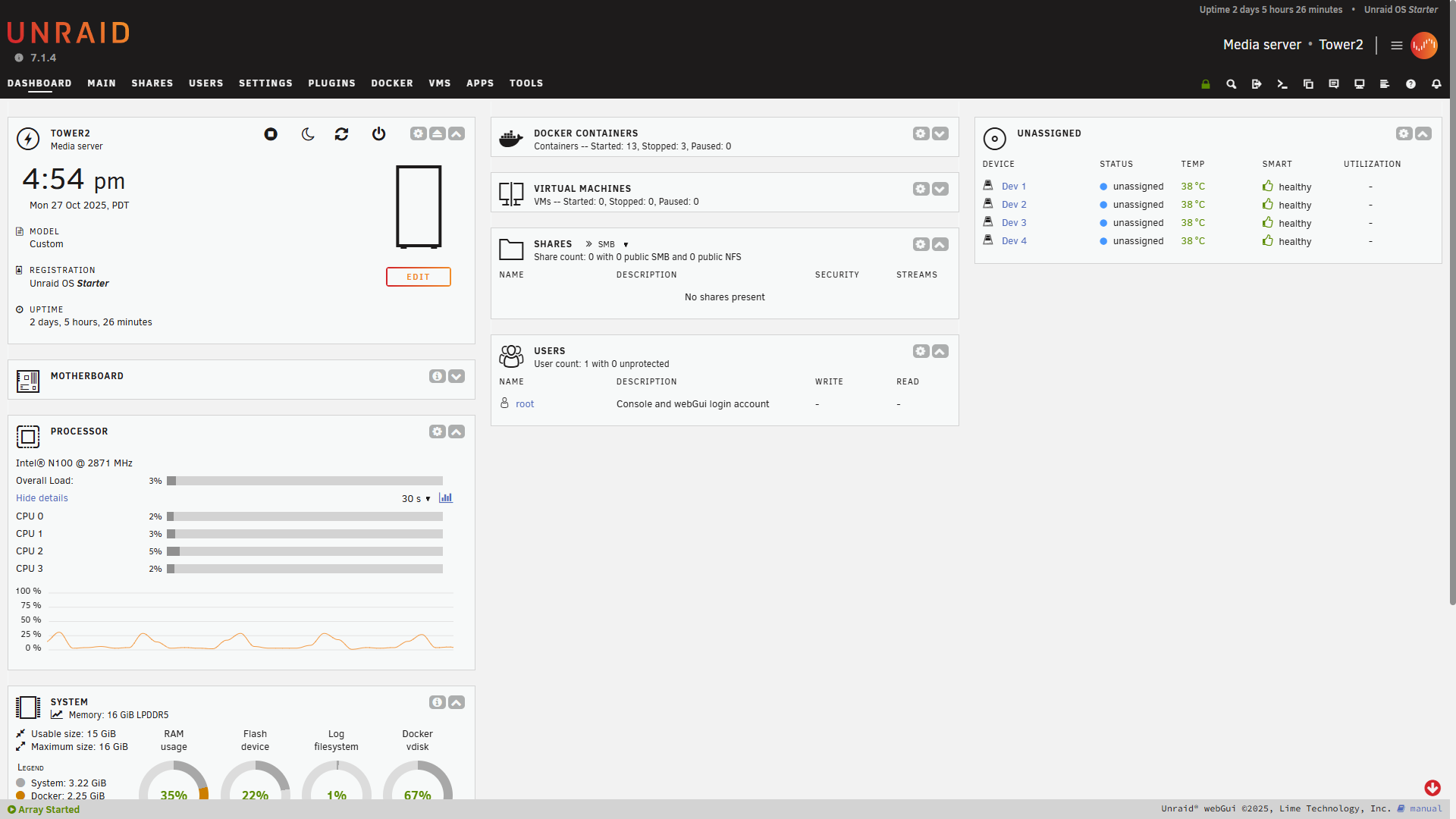
UNRAID’s second biggest strength is the web UI. If you’re moving from say, a Synology NAS, to a DIY NAS of sorts, then UNRAID’s Web UI is easy to navigate and learn. As a total UNRAID noob last year, I did find it pretty easy to set up and get going, only consulting the documentation for more advanced features. UNRAID also has a strong community of developers creating plugins explicitly for the UI and creating presets for already existing Docker containers, making them easier to set up for those who may not be totally familiar with Docker CLI or Docker Compose.
UNRAID can also set up VMs for you to control. The VM capabilities was most famously shown off in Linus Tech Tips’ series of videos such as “2 Gaming Rigs, 1 Tower” and “7 Gamers, 1 CPU”.
Of course, I didn’t test out VM capabilities on the N2 because the N100 is simply too anemic for any practical VM usage.
UNRAID also has plugins that can take your UNRAID experience to the next level. In particular, I use ZFS Master and Unassigned Devices for better ZFS support. I also use Compose Manager to allow me to actually write Docker Compose YAML files and FolderView2 to group docker containers together.
The Docking
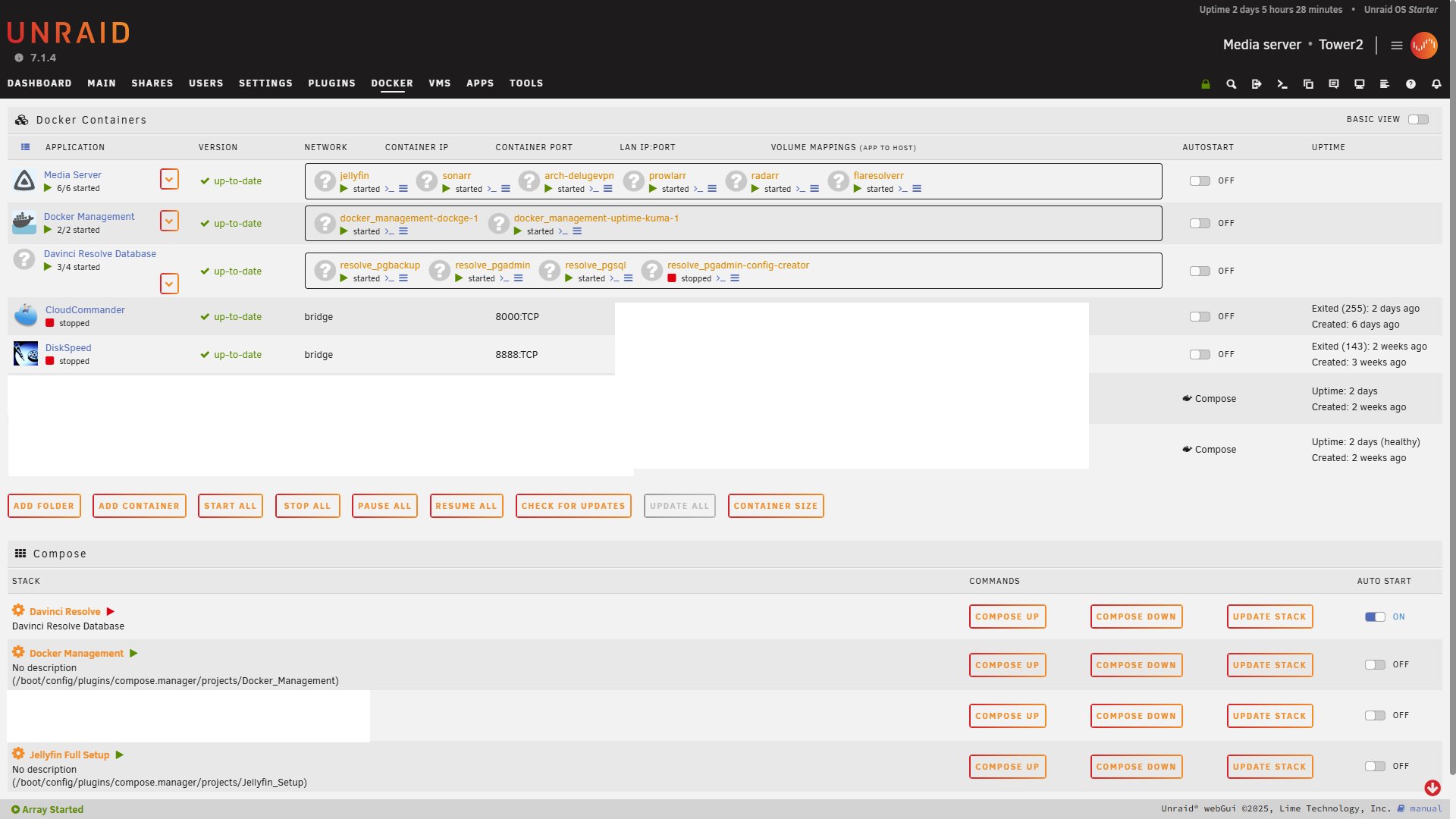
Docker is not exclusive to UNRAID, nor is it even the best on UNRAID, but it works just fine. I use a combination of docker containers to set up Jellyfin and media tracking. I set up my Davinci Resolve database, allowing me to access the exact same projects from multiple devices. I have Nginx Proxy Manager set up for minimal ports forwarding. The sky’s the limit with Docker. There are MANY more docker containers that you can set up for all kinds of selfhosted services… but that would go WELL beyond the scope of this review.
Unhappy with UNRAID? Just get another OS
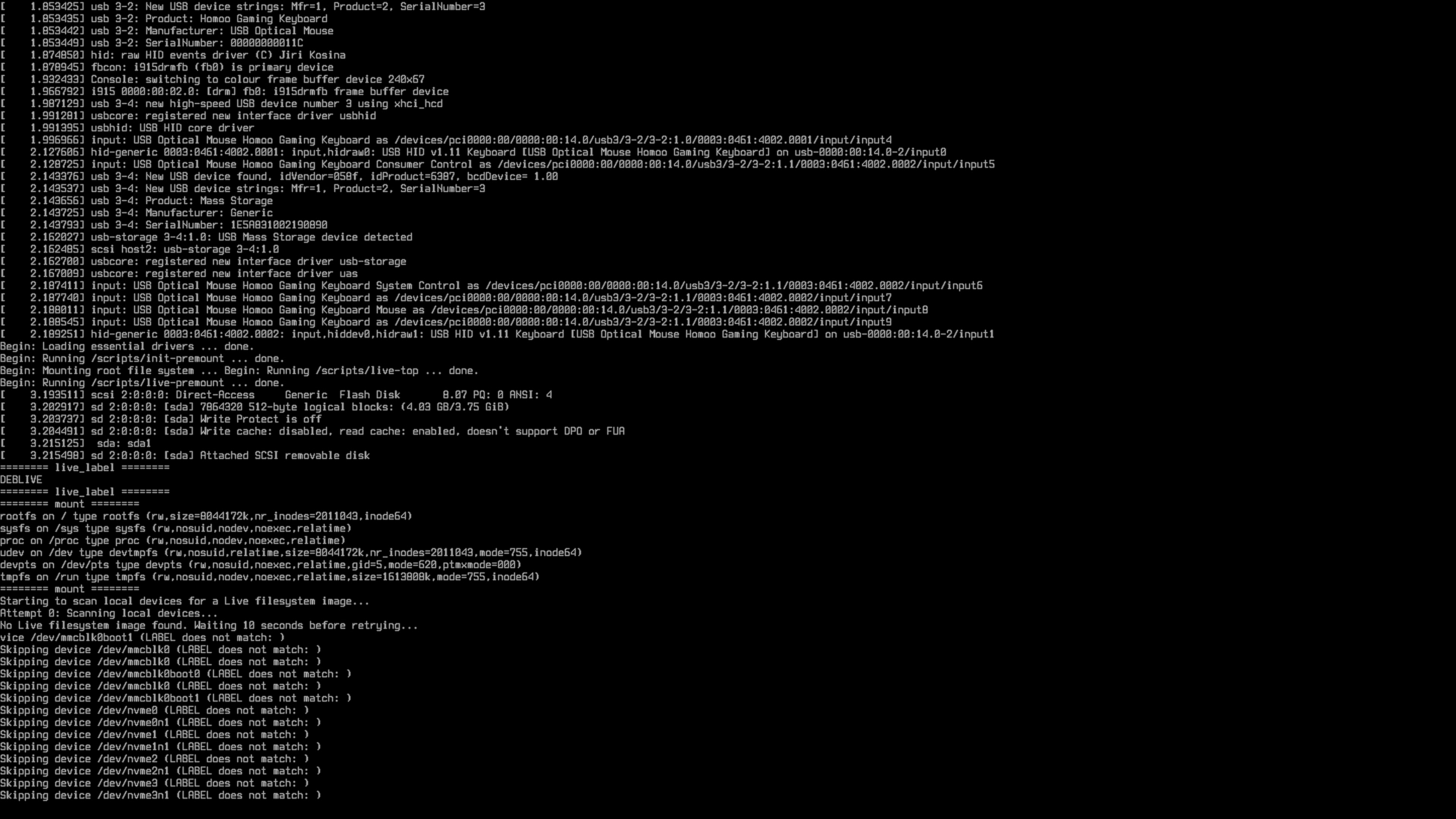
So I’ve been happy with UNRAID for the past year or so, with the previous LincStation N1 NAS. I primarily used it as a media server and media storage for my videos on my channel (shameless self-promo plug here). But in case you don’t like UNRAID, you can install TrueNAS Scale, or even LincPlus’s own OS, LincOS. They did ask me to try it out and I do have some thoughts.
The Beta Software – LincOS
LincOS is a work in progress and it definitely shows. I like what it tries to do, being a beginner friendly OS that requires very little in the way of understanding hardware or networking. The problem is that a LOT of the important settings are only accessible in the WebUI… and a good chunk of those settings are only in Chinese, regardless of your language setting. That alone would be a dealbreaker for me, but I’m a trooper and I navigated some of those using Google Translate on my phone.
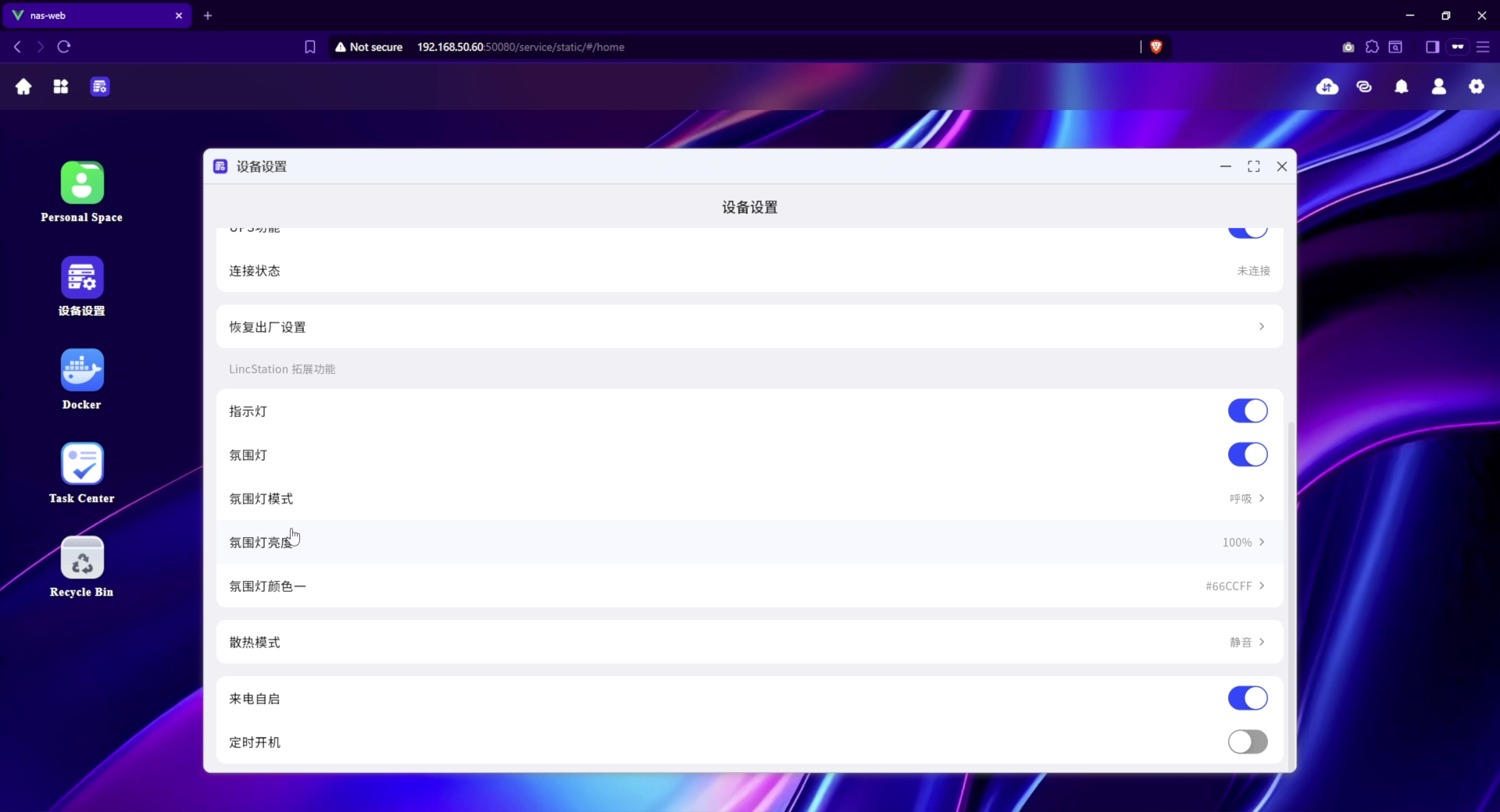
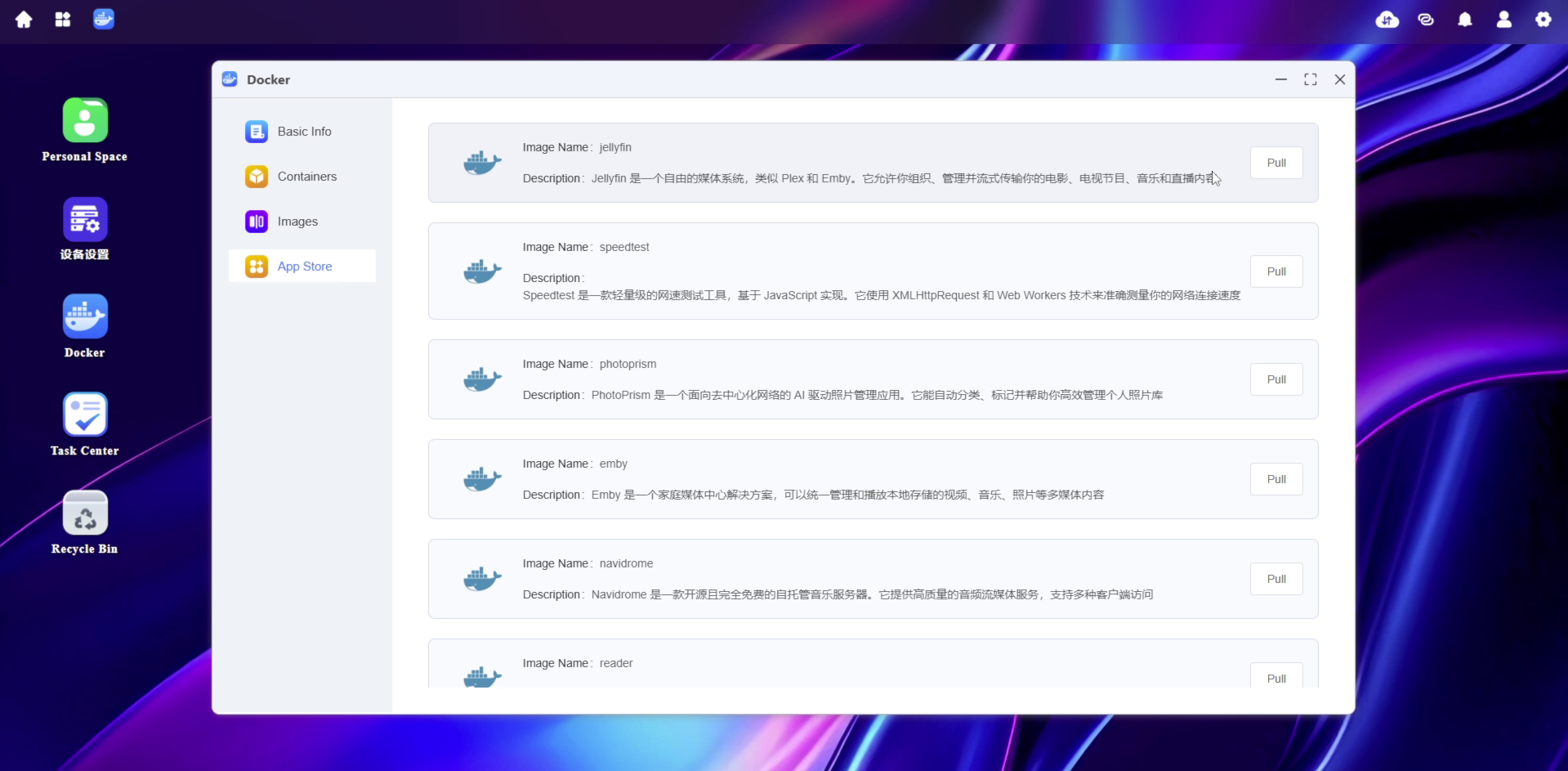
The other big dealbreaker for me was Docker support. It supports Docker but you’re very limited on what containers you can actually set up. You have the usual suspects like Jellyfin, Plex, and Emby, but you lack the ability to download whatever niche container you want. For example, I have specific containers I need for my Davinci Resolve database to function… and there’s no way for me to get that set up on LincOS. LincOS also doesn’t support Docker Compose. UNRAID doesn’t support Docker Compose by default, but at least there you can download a plugin that supports Compose, whereas you don’t even get that option on LincOS.
Now I can’t be too harsh on software that I explicitly know is a work in progress and in some sort of beta state, but it’s an OS I can’t really recommend for a number of reasons. I hope that LincPlus are able to work on the OS and improve on it substantially, because I certainly feel they’ll eventually replace those free UNRAID licenses with their own OS at some point.
To Buy… or NOT to Buy?
Now we get to the fun part… the price. The LincStation N2 is $499.99 MSRP, which is about on par with most NASes. The big problem naturally is that drives will be expensive, and that will be entirely variable. My SSD setup costs almost as much as the NAS itself, and that’s only 8TB total. Imagine how much more it could be if you were to get 4TB or even 8TB NVMe SSDs.

Sounds expensive right? Until you realize that’s merely the upfront cost for a NAS that you can configure to be accessible outside of your local network. Google Drive gives you a paltry sum of storage at a consumer tier grade, and even their enterprise levels don’t give me past 5TB without needing special consideration from Google. And the fees add on monthly and you don’t even own the hardware. So yeah, a higher upfront cost vs a monthly fee? The answer is simple, the higher upfront cost as it’ll be cheaper in the long run, you own the hardware, and you can do as you please with the storage you bought. The N2 is worth of your consideration primarily because of how easy it is to get up and running out of the box and just how expandable UNRAID can become. A true unsung hero of any tech enthusiast’s setup.

About The Author:
Hi-Tech Lo-Life
Hi-Tech Lo-Life reviews the hottest tech and pop culture media! That includes anything from video games to anime to tech products, movies, you name it! He also does a lot of Steam Deck content!